Rules
Rules allow you to provide specific instructions that guide how the AI agent behaves when working with your code. Instead of the AI making assumptions about your coding standards, architecture patterns, or project-specific requirements, you can explicitly define guidelines that ensure consistent, contextually appropriate responses.
Think of these as the guardrails for your AI coding agents:
- Enforce company-specific coding standards and security practices
- Implement quality checks that match your engineering culture
- Create paved paths for developers to follow organizational best practices
By implementing rules, you transform the AI from a generic coding agent into a knowledgeable team member that understands your project’s unique requirements and constraints.
How Rules Work
Your agent detects rules and applies the specified rules while in Agent, Chat, and Edit modes.
Scopes of Rules
Rules mainly have 2 scopes:
- Global Rules: Rules that apply to all projects and workspaces within your organization.
- Workspace Rules: Rules that apply only to the current workspace.
How To Create Rules
Mainly there are two ways of creating rules for your local set up:
Through settings tab:
- Open Settings and locate the rules tab
- Click on the + icon which will open a dropdown with two scopes Current Workspace and Global as shown:
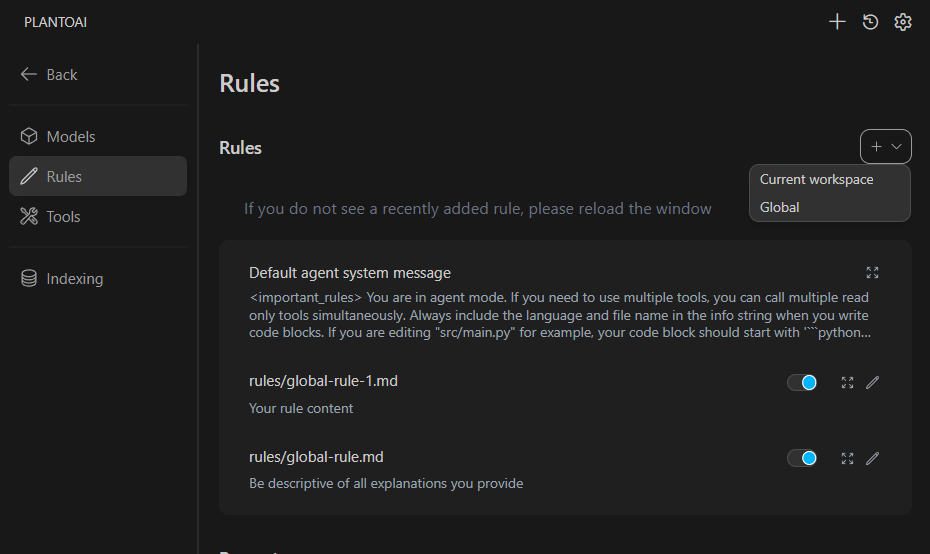
- Click on whichever serves your needs.
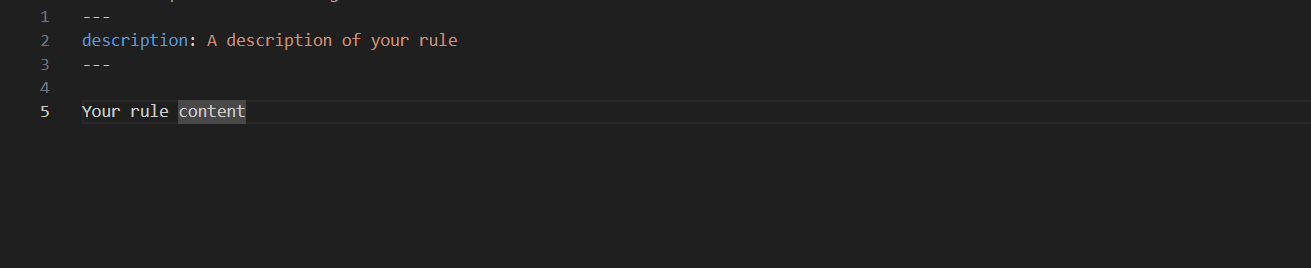
- An md file will open in your editor. Describe your rule and save!
Through chat box:
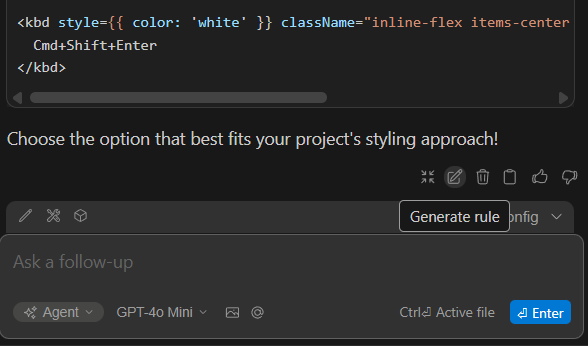
- Below chat responses locate and click on the pencil icon
- An form will open. Describe your rule and click Generate!
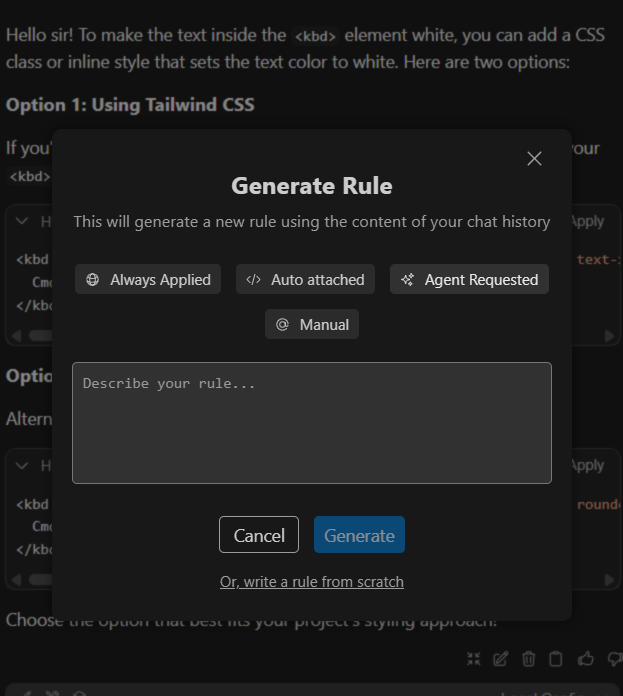
- A brief description of the option are as follows:
- Always Applied: These rules are included in every interaction with the AI, regardless of the files you are currently working on.
- Auto Attached: These rules are context-aware and only apply when relevant.They are automatically added to the system prompt when the current context (e.g., open files in chat, or files mentioned in code blocks) matches the rule's globs (file path patterns) or regex (file content patterns).
- Agent Requested: These are "on-demand" rules that the AI can choose to pull in.The AI agent sees these rules listed in its requestRule tool. If it determines that a rule's description matches your current task, it can explicitly request the full content of that rule.
- Manual: You can explicitly reference rules using the @rules mention in the chat input.